Recurring Items
What are Recurring Items?
Recurring Items allow you to set up automatic repeating transactions such as loan repayments, subscriptions, utility bills, and other regular expenses. This helps you stay on top of your budget by automatically generating entries on the schedule you define.
What’s new in the Recurring Details View?
In the v2025.5 update, the Recurring Details View introduces several enhancements to help you better manage your recurring expenses:
- Detailed Header: Displays relevant information about the recurring item, including its schedule, currency, and next due date.
- Create New Entry Button: Quickly add a new individual entry directly from the recurring item’s context menu without navigating away.
- Full Entry List: View the complete history of all individual entries created from this recurring template, with easy access to edit or delete them.
The same context menu — Edit, Create Entry, and Delete — is also available directly on a Recurring card in the list, by pressing and holding it, so you don’t need to open the detail view first for quick actions.
How does entry management work with Recurring Items?
- The app automatically generates entries according to the schedule.
- You can manually add or remove specific entries if the automatic schedule requires adjustment.
- The entries list in the details view provides a chronological overview for quick management.
- The update also fixed bugs related to duplicate entries being created inadvertently and cleans up the recurrence rule display for clarity.
Can I edit a Recurring item’s details, not just its schedule?
Yes. Choosing Edit opens the template’s editor, which has two parts:
- A Details section for the template’s title, amount, currency, category, account, and location — everything about the entries it generates.
- The existing Repeat section for the schedule itself (frequency, interval, start and end dates).
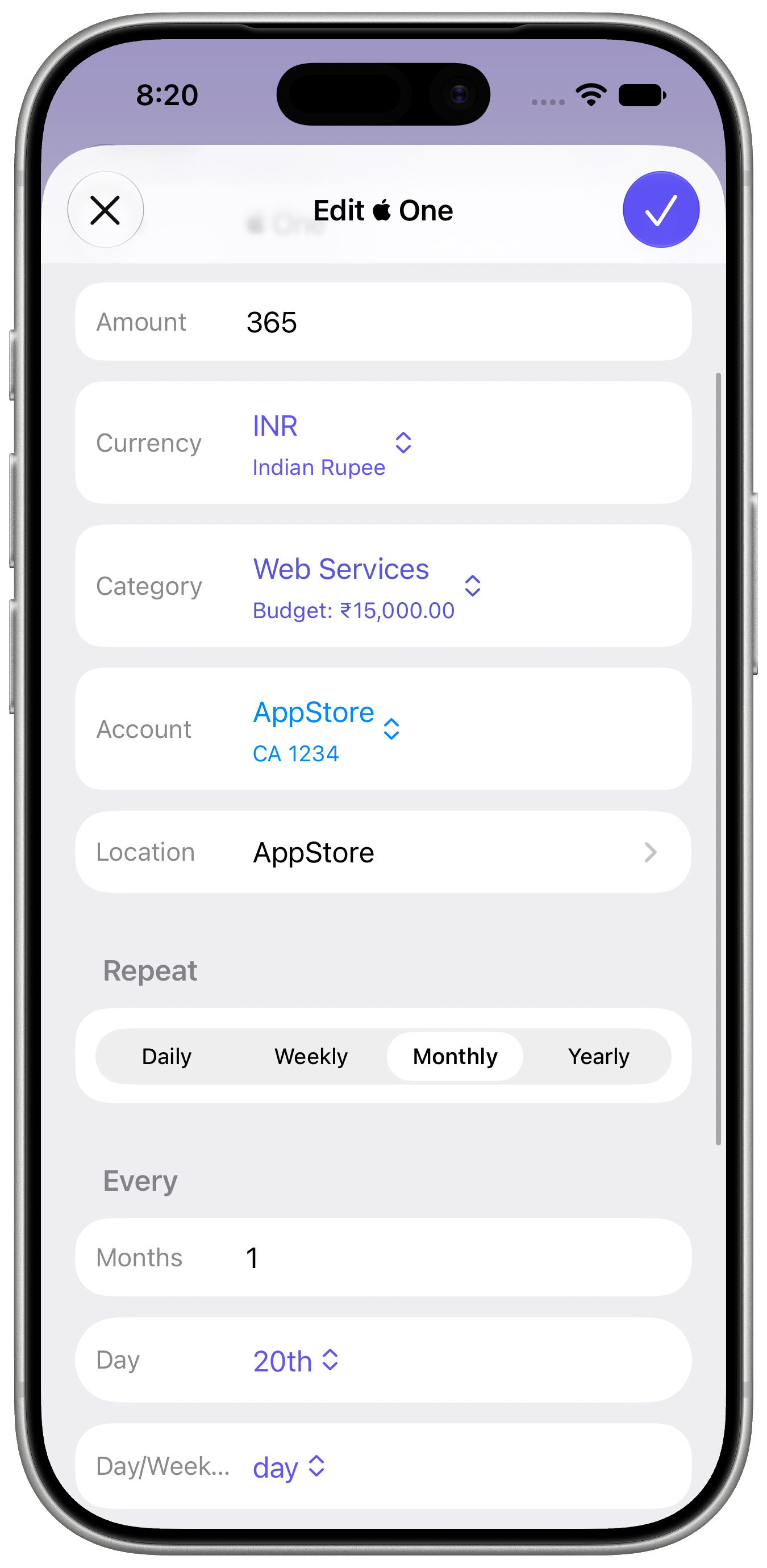
Changes to the Details section only apply to entries generated after you save; entries already created keep the values they were made with.
Why use Recurring Items?
Using Recurring Items helps automate your budgeting process, ensuring you never miss tracking regular payments while reducing manual entry effort. It also enables reminders one day in advance so you can maintain sufficient funds.
How to find Recurring Items in Pockity?
To access and manage your Recurring Items (same flow applies on iPadOS as iOS):
- Open the Pockity app.
- On macOS, select Recurring from the sidebar. On iOS, tap the ellipsis menu in the top-trailing corner and select Recurring from the menu.
- Tap on any specific Recurring item to open its detailed view on iOS, or double-click it on macOS to show all entries created by it.
- From here you can view schedules, entries, and add new entries as needed.

